
Put your app on FastDog with Claude Code, Codex, or Cursor
Connect your running app with a scoped prompt after signup, email verification and DNS setup. Review and approve the connection commands.
If your app runs on your own server, a VPS, a home box, or in Docker, your coding assistant can connect it to FastDog: HTTPS on your own domain, through an outbound tunnel from your server to FastDog, so no inbound ports are opened. You stay in charge of the parts that should be yours: your DNS records and approving the commands it runs.
The connect code in the prompt covers one website and expires in an hour. API keys belong to your account and expire after 30 days by default (90 at most); a trial key expires at the trial end. The agent key is saved on your server, and anyone with Docker access there can read it. Each new connect command replaces it, and you can revoke it.

There are two ways to do it:
- Option A (any plan, including the trial; no key needed). You add your website and its DNS records in the portal. Once the address is verified, press Create prompt on the Server page and paste the prompt into your assistant. It connects your server and runs the agent.
- Option B (a trial or paid API key). With an API key, the assistant does the whole setup from scratch, including adding your website and checking DNS.
The free trial gets one API key for its one website, once you’ve verified your email. It has the same three permissions as a paid key, can’t touch any other website, and stops working when the trial ends. After you upgrade, create a new paid key; the trial key stops at the original trial end. The website must be on a domain you own. Names under FastDog’s own domain (fastdognetworks.com) can’t be used; the API returns 400 reserved_hostname for them. A trial key is locked to its one website, so it gets 403 forbidden for any other name. Removing a website is only possible in the portal, never with a key.
Before you start
- An app running on a server you can reach in a terminal, and the port it listens on (for example
http://127.0.0.1:3000). - Check the limits below. FastDog carries ordinary HTTP(S) requests only.
- A domain where you can add DNS records. Use a subdomain like
app.example.test. Root domains only work if your DNS host supports ALIAS, ANAME, or CNAME flattening. - Docker on that server, already usable without sudo (recommended). If you don’t have that, the assistant can use the Linux systemd installer instead, which you run yourself.
- A FastDog account. Start free: 7 days, no card The trial covers one hostname.
- Claude Code, Codex, Cursor, or another assistant that can run terminal commands with your approval.
Option A: you add the website, the assistant connects it (any plan, no key needed)
- Sign up and sign in to the portal.
- Add your website address, on a domain you own (for example
app.example.test).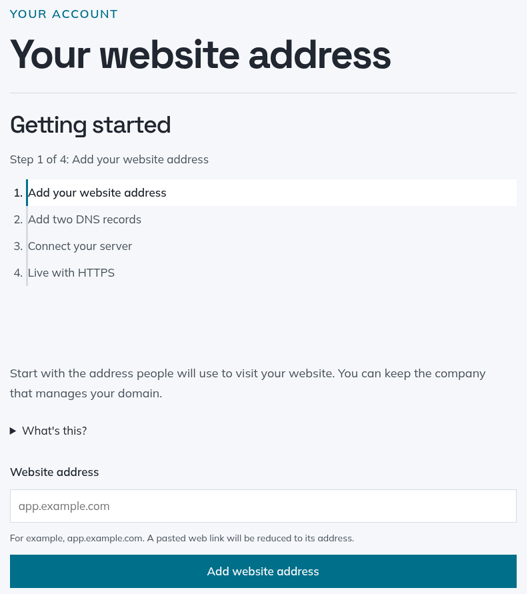
Add the address people will use to reach your app. - Add the two DNS records the portal shows, at your DNS provider: a CNAME on your hostname and a TXT record on
_fastdog-challenge.plus your hostname. On Cloudflare DNS, set the CNAME to "DNS only" (grey cloud). Press Check until the hostname is verified. That can take a few minutes or a few hours, depending on your DNS provider. - On the Server page, under "Copy prompt for your AI assistant" (it appears once the address is verified), press Create prompt.
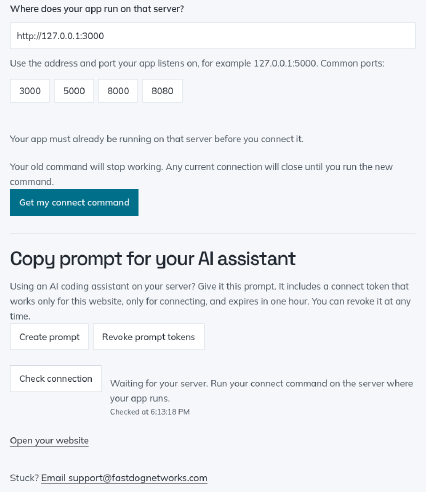
After address verification, create a prompt containing a one-hour connect token. Portal screenshot; identifying details removed. - Paste the prompt into your assistant, and tell it the port your app listens on if it asks. The prompt includes a connect token that works only for this website, only for connecting, and expires in one hour. Revoke prompt tokens on the same page cancels it.
- Approve the commands. The assistant fetches a private env file straight to disk with
curl, then asks to run onedocker runto start the agent. Each new connect command replaces the agent key, so an old env file stops working after you reconnect. If your assistant can only run a plaincurl, it asks you to approvechmod 600on the file before thedocker run. If the assistant isn’t on your server, run the commands on the server, or copy the file once withscpinto a 0700 directory there, then delete every other copy. - Check it’s live. When the assistant reports the agent connected, open
https://app.example.test/. The certificate is issued on the first HTTPS request, which can take about a minute. - Clean up. The assistant gives you a one-line
rm -fto delete the env file. The running container doesn’t need it. You can delete the connect-token file as well.


Option B: the assistant does the whole setup (trial or paid API key)
-
Create an API key on the portal’s API keys page. Tick all three: "Read website status" (ticked by default), "Add websites and check their DNS", and "Get a connect command (this replaces the current server connection)". It’s shown once and belongs only to your account. On the trial, you get one key, for your one website: enter the website and your password; there’s no expiry field, because it stops working when the trial ends. On a paid plan you can optionally limit a key to specific websites, and it expires after 30 days by default (90 at most).
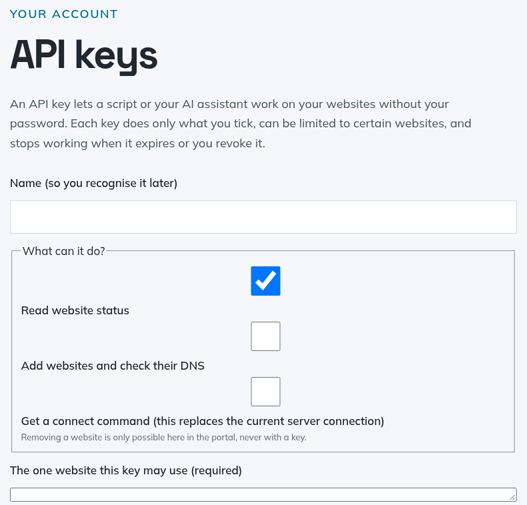
A trial API key is limited to one hostname and expires with the trial. Portal screenshot; identifying details removed. -
Save the key to a private file yourself, once. Many assistants refuse commands that contain a secret, so this step is yours. The exact one-line command is in /llms.txt under step 0. It writes the key to
~/.config/fastdog/HOSTNAME.headerwith owner-only permissions. -
Paste this prompt, with your own values in place of the placeholders. It’s the prompt from the Oct 17 run (operator API key).
I’m connecting my website {{your-hostname}} to FastDog Networks. Please do the whole setup on this server. Read the setup guide first: /llms.txt My FastDog API key is already saved as a header file at {{/absolute/path/to/key.header}} (absolute path). My app runs on this server at http://127.0.0.1:{{port}}.
When it asks, reply once your DNS records are saved:
I have added both DNS records. Yes, I have Docker access without sudo.
And when it shows you the
docker runline:Approved. Run that docker run command now.
-
Approve what it lists up front. The guide tells the assistant to list, before any DNS work, the
curlcalls it will make to the FastDog portal and the exactdocker runline. If you allow curl up front, the only new command it needs approval for later is that onedocker run. -
Add the two DNS records it shows you, as in Option A step 3, and tell the assistant when they’re saved. It checks every 30 seconds.
-
Approve the
docker run, then wait. The assistant polls status until it reports live, then opens your site. -
Clean up the env file as in Option A. Delete the API key header file too, and revoke the key if you’re done.

What you still do yourself
- Add two DNS records. The assistant usually can’t, and it shouldn’t hold your DNS login anyway.
- Approve commands. Your password and sudo prompts stay with you.
- Option A: add your website in the portal, then press Create prompt once it’s verified.
- Option B: save the API key to a file (trial or paid).
Limits today
FastDog is for ordinary websites and HTTP APIs. Today it does not support:
- WebSockets. An upgrade request returns HTTP 400.
- TCP or UDP services (SSH, databases, game servers). HTTP(S) only.
- Long requests or streaming. Each request has a 30-second timeout. Streaming responses and server-sent events (SSE) aren’t supported.
- Large uploads. Request bodies are limited to 50 MiB. Larger requests return HTTP 413.
FastDog’s edge also runs on one server today, with no multi-region failover.
If your app needs any of these, FastDog isn’t the right fit yet. See our comparison pages for tools that support them: Cloudflare Tunnel, ngrok, Tailscale Funnel.
What a run looks like
One Oct 17 run, with an operator API key, not a trial account: a fresh Claude Code session took a new hostname to live HTTPS in under 3 minutes (2:48.8 total, including 63 seconds of DNS and 29 seconds waiting on approval), for about $0.17 of AI usage (a list-price estimate, not a FastDog charge). DNS was quick in that test only because the test name used FastDog’s own nameservers. With your DNS provider it may take longer. Curl and web fetch were allowed up front, so the only command it had to ask for was the docker run. Option A has more steps by hand, because you add the website and records in the portal first.
In our own test (Oct 22, 2026), a trial API key took a new hostname from added to live HTTPS in under 5 minutes, including adding two DNS records at an external DNS provider.
If something goes wrong
- "Records not found yet": wait and check again. Make sure the TXT name starts with
_fastdog-challenge.and your provider didn’t add the domain twice. - Agent connected but the app isn’t answering: start the app, or fix the port. On Docker Desktop, use
host.docker.internalinstead of127.0.0.1. - HTTP 400 on a WebSocket connection, or timeouts on long requests: see "Limits today."
- Still no certificate after 30 minutes: email support@fastdognetworks.com with the hostname.
Full reference: /docs for you, /llms.txt for your assistant.